
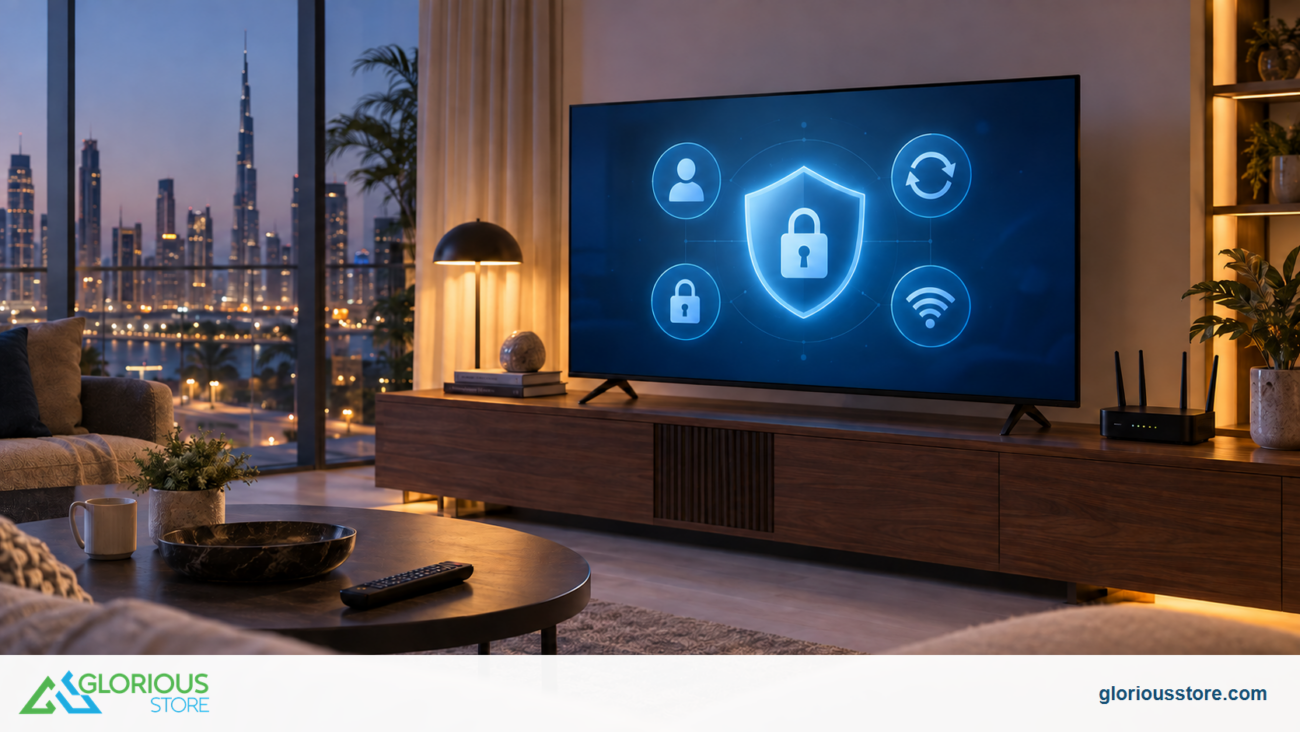
A smart television is also an internet-connected device. When you sign in, install apps or use voice search, the TV can handle account, viewing, device and diagnostic data. That does not make a Google TV unsafe, but its setup deserves the same care as a new phone.
This Google TV privacy settings UAE guide gives households a practical, model-aware checklist. Menu names can change with the television manufacturer, software version, language, account type and region. Use the paths below as a starting point, then confirm what appears on the exact TV in front of you.
Privacy is not an all-or-nothing switch. Choose the conveniences you want, limit unneeded access, keep software current and protect the connected Google Account.
Quick setup: the 10-minute privacy check
Use this order during initial setup or after a major software update:
- Confirm the exact Google Account and profile shown on the TV.
- Install any available system updates and update installed apps.
- Review location access and leave it off unless a feature genuinely needs it.
- Review the television’s advertising ID choice.
- Check voice, microphone and personal-results settings.
- Remove apps you do not use and review permissions for the apps you keep.
- Choose whether personalized recommendations are useful for this profile.
- Create separate household profiles where supported instead of sharing one history.
- Turn on two-step verification or a passkey for the connected Google Account.
- Recheck the settings after adding a streaming app, changing accounts or resetting the TV.
Do not copy an unrelated model’s setup word for word. A control may be renamed or managed inside an app.
Why this matters in the UAE now
The UAE Government’s official platform updated its National Policy for the Internet of Things Security page on June 29, 2026. The policy highlights security and privacy by design, impact-based priorities, layered defence, recognised best practices and a collaborative approach to vulnerabilities.
A household TV is not critical infrastructure, and the policy does not certify any Glorious Store product. The practical connection is that connected devices form an ecosystem: the TV, account, apps, router and setup phone all matter.
That makes a pre-use checklist more useful than assuming a familiar interface has already chosen the right settings for every family.
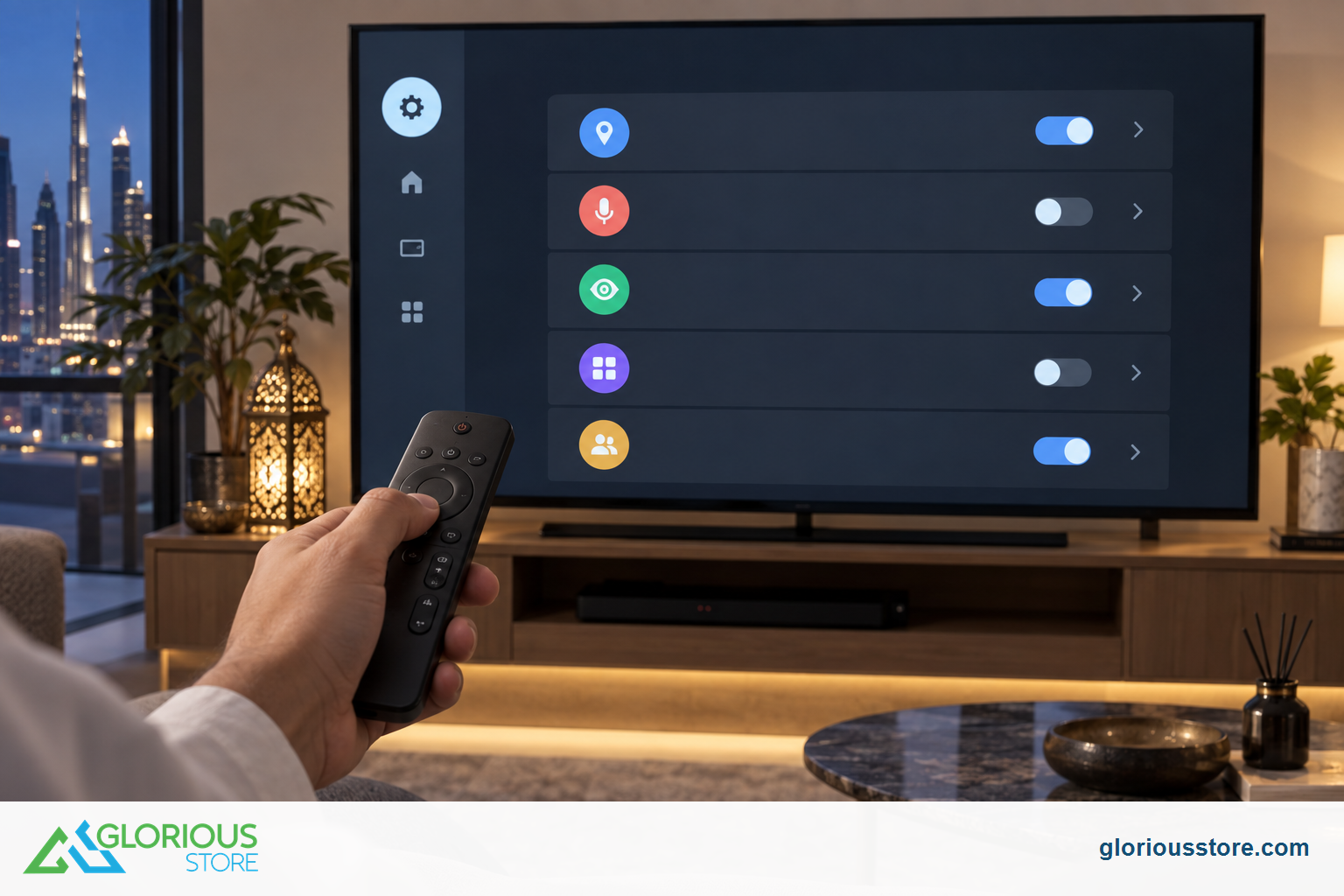
Review privacy choices on the actual TV. Icons are illustrative; menu names and availability vary by model, software and region.
1. Start with the right profile
Before changing settings, open the profile area and confirm whose account is active. A shared household profile can mix watch activity, recommendations and voice results. Google says Google TV supports multiple profiles, although availability and behaviour can vary by device and account.
Use separate adult profiles when people want distinct recommendations or watchlists. A kids profile may offer controls on supported devices, but it does not replace supervision of subscriptions, purchases and in-app age settings.
Avoid a work or school account unless permitted; Google notes some services may not work with enterprise accounts. Remove old profiles when a roommate moves or a rental TV changes hands.
2. Understand what Google TV can use
Google’s current data-handling explanation says Google TV services can use information such as watchlists, watch activity, streaming services, approximate location, device or user identifiers, installed apps, app interactions, diagnostics and data used for personalization or advertising.
This is not a claim that every item is collected in every situation. Data use depends on the feature, account and settings, so read prompts carefully when linking services or enabling voice features.
For less crossover with personal email, photos and activity, consider a dedicated household Google Account and protect it like any other important login.
3. Review location, ads and recommendations separately
These controls solve different problems.
Google documents a location control under Settings > Privacy > Location on Google TV. Turning it off can limit device-based location signals used by apps, but Google also notes that a general location may still be inferred from the internet connection’s IP address. Do not describe location-off as complete anonymity.
Google documents options to reset or delete the advertising ID under Settings > Privacy > Ads. Deleting it does not remove all ads; other information may still influence them.
Apps-only mode can hide personalized home-screen recommendations. Google’s Google TV overview says sponsored content can remain, other privacy settings do not change, some Search/Assistant/watchlist functions are disabled and apps can still show their own recommendations.
Choose each setting for its real effect: location access, advertising identifier and home-screen recommendations are not interchangeable.
4. Check apps, permissions and voice features
Remove unused apps, then inspect available permissions for the rest. Pay attention to microphone, location, camera and nearby-device access. A video app does not automatically need every permission the TV can provide.
Voice search can be convenient, but it may send a spoken query to the selected assistant or app. Google says voice queries can return results from other apps in use. Review the microphone control, Assistant or voice-assistant settings, personal results and account activity choices shown on the exact software build.
A microphone button does not explain how each request is processed. Check the manual and on-screen indicators; leave voice features disabled if they are unnecessary.
5. Keep the TV and apps updated
Updates can fix security issues and app compatibility problems. Google’s troubleshooting guidance documents the path Settings > System > About > System update > Check for update on Google TV, while manufacturer wording may differ.
Install available updates from the TV’s own settings and official app store. Do not install firmware from an unrelated model, an unverified file-sharing page or a social-media message. If an update fails, confirm the exact model, stable power and network connection before retrying or contacting authorised support.
If a TV no longer receives security updates, review its role. It may still serve as a display for a maintained external device after unused accounts and apps are removed.
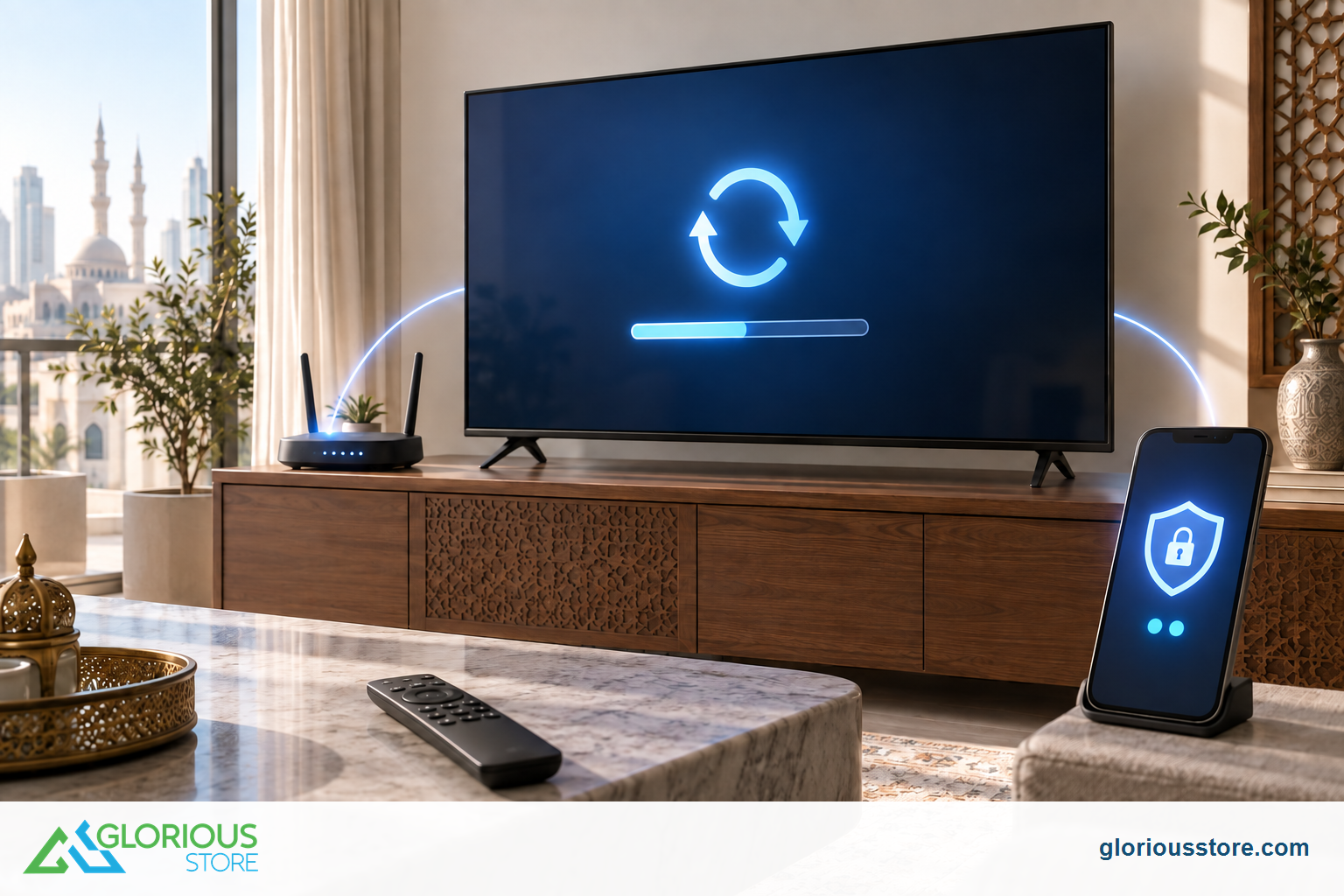
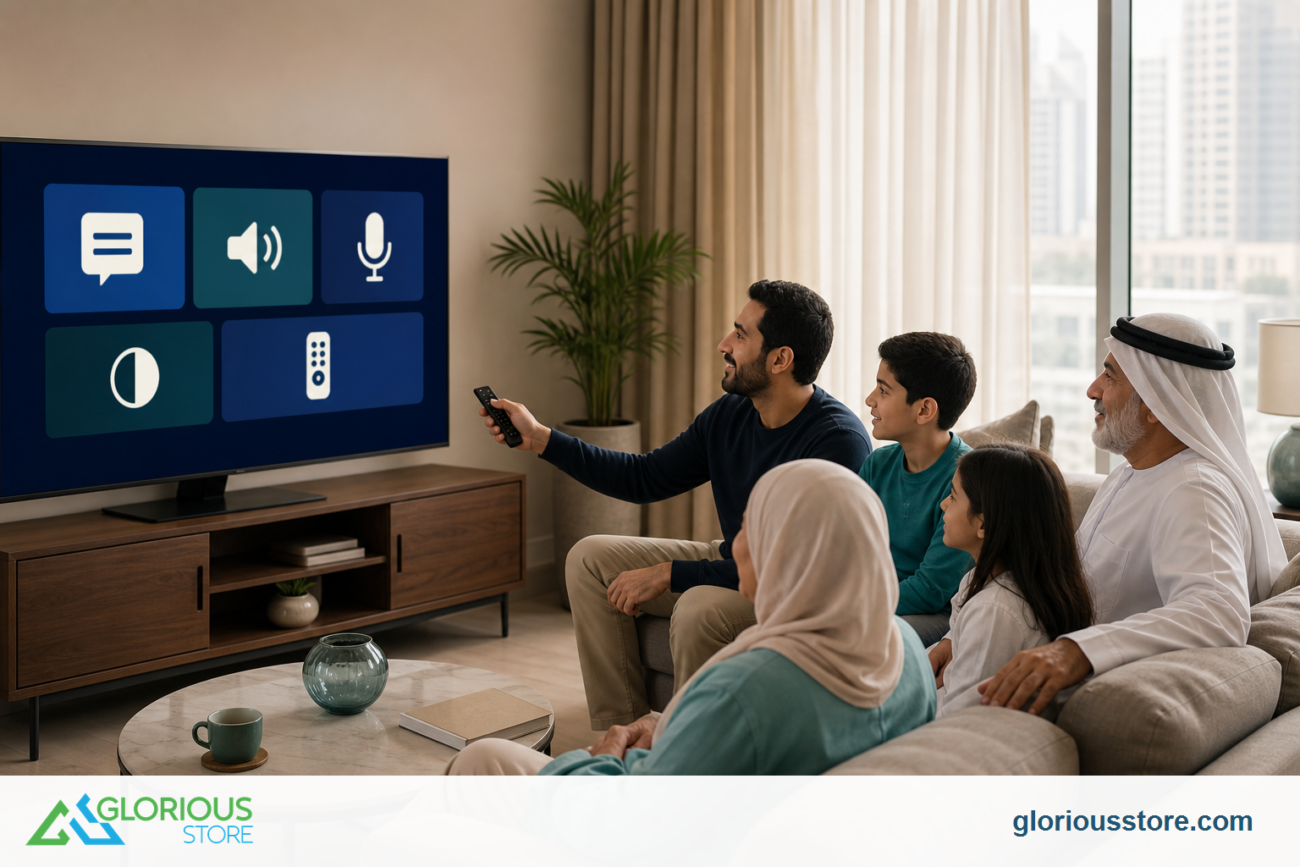
Keep the television, apps, account and home network in the same security checklist. The image is illustrative, not a model-specific interface.
6. Protect the connected Google Account
Use a unique account password stored in a reputable password manager; do not reuse it for email and streaming services.
Google recommends two-step verification and explains that a second sign-in step helps even if a password is stolen. A passkey can also provide a passwordless sign-in route tied to a trusted device. Keep recovery information current and store backup options safely away from the TV.
Never enter a password or code after following an unexpected message or QR code. Start from the TV’s setup flow or the official account address on a trusted device.
7. Secure the home connection
Use a trusted home network with modern Wi-Fi security and a strong router-admin password. Change default credentials, install router updates and disable unneeded remote administration. A guest network can separate entertainment devices from work computers when supported.
Avoid open public Wi-Fi. Before casting, verify the destination screen; remove old paired devices after guests leave.
Current StarSat Google TV options at Glorious Store
The following live product pages were checked on September 18, 2026. Each showed an Add to Cart control. Stock and specifications can change, so the product page remains the purchase-time reference.
| Current listing | Verified listing details | Stock checked Sept. 18 | Privacy/setup note |
|---|---|---|---|
| StarSat Google50 50-inch 4K Google TV | Google TV OS, Chromecast, Wi-Fi, Bluetooth, Google Assistant and multiple HDMI/USB connections | 10 | Compact current option; confirm the installed build and visible privacy menus |
| Starsat SV-CG55T2S2 55-inch UHD Smart TV | 4K Google TV, voice control, Chromecast, Dolby Vision/Atmos, HDR10+, HDMI 2.1, USB 3.0, Ethernet and listed ALLM/VRR | 50 | Ethernet can simplify a stable home connection; review voice and profile choices |
| Starsat SV-CG65T2S2 65-inch UHD Smart TV | 4K Google TV, Chromecast, Dolby Vision/Atmos, HDR10+, four HDMI 2.1, three USB 3.0, Ethernet, listed ALLM/VRR, 120 Hz and 40 W audio | 50 | Larger current option; verify delivery access, software build and essential permissions |
The listings confirm Google TV and published hardware features, not a specific privacy screen, patch level or future update. Ask for the exact model and software version when a control is essential.
For the wider buying decision, use the Gemini on Google TV checklist to avoid assuming future AI eligibility. The smart TV accessibility settings guide covers captions, TalkBack and audio-description checks, while the TV wall-mount VESA guide covers physical installation.
Frequently asked questions
Can I use Google TV without sharing any data?
Not all Google TV features work without an account, internet connection or data processing. Some devices offer a Basic TV mode during setup, but availability varies and it limits smart features. Read the exact setup choices on the television.
Does deleting the advertising ID remove ads?
No. Google says deleting the advertising ID prevents a new ID from being assigned, but apps may still show ads based on other factors or information shared with them.
Does Apps-only mode make Google TV private?
No. It hides personalized home-screen recommendations, but sponsored content can remain, apps can personalize inside their own interfaces and other privacy settings do not change automatically.
Should every family member use the same TV profile?
Separate profiles can keep recommendations and watchlists more distinct. Still review subscriptions, purchases, parental controls and account security separately.
How often should I review these settings?
Review them after initial setup, software updates, new app installations, account changes, a factory reset, a change of household occupants or any unexpected sign-in alert.
Make privacy part of the buying checklist
Choose a television for verified screen, sound, connection and app features, then treat privacy setup as part of installation. Record the exact model, update the software, review account and app access, protect the Google Account and recheck the controls after major changes.
Browse the live StarSat Smart TV collection for current availability. If a privacy, voice or profile feature is essential, contact Glorious Store with the exact model and ask for confirmation on the current stock batch before ordering.
Sources
- UAE Government: National Policy for the Internet of Things Security, updated June 29, 2026.
- Google TV Help: How Google TV handles your data, accessed September 18, 2026.
- Google TV Help: Change ad settings for your Google TV, accessed September 18, 2026.
- Google TV Help: How Google TV and Android TV work, accessed September 18, 2026.
- Google TV Help: Fix problems with your Google TV device, accessed September 18, 2026.
- Google Account Help: Protecting your personal info with 2-Step Verification, accessed September 18, 2026.
- Glorious Store live 50-inch, 55-inch, 65-inch and Smart TV collection pages, checked September 18, 2026.




Leave a comment