
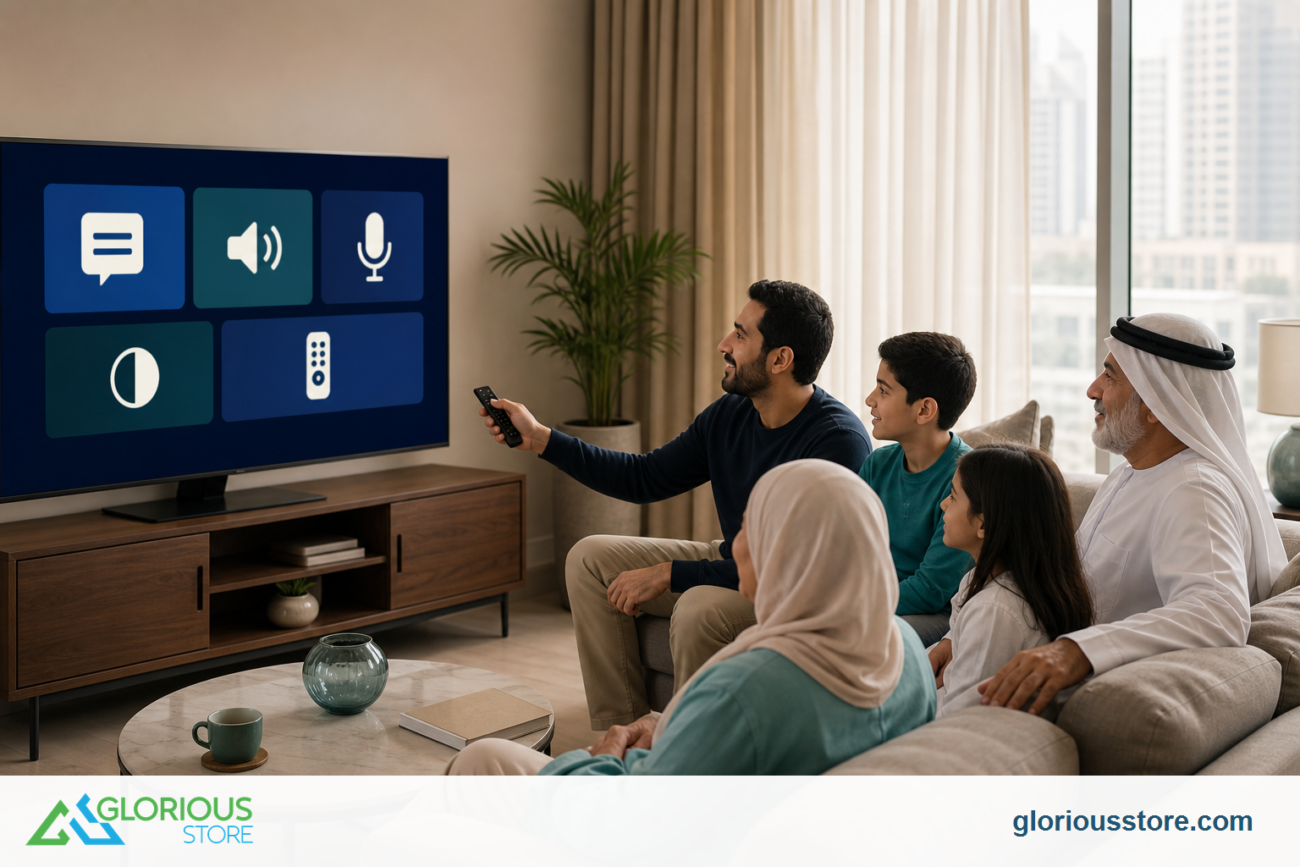
A television can have excellent 4K picture quality and still be difficult for someone in the household to use. Small menu text, fast-disappearing messages, unclear dialogue, crowded remotes, and inconsistent captions can all get in the way. The most useful smart TV accessibility settings are therefore not “extra” features. They are practical controls that can make everyday viewing easier for older adults, people with low vision or hearing loss, viewers who prefer subtitles, and anyone who wants a simpler interface.
This is a timely subject for buyers in the UAE, Middle East, Europe, and Africa. On June 30, 2026, the DVB Project approved an updated package of DVB-I specifications that included revised accessibility-signalling guidance for television services delivered across broadcast and broadband. That industry work does not guarantee that every channel, app, or TV offers every feature, but it shows why accessibility is becoming a more visible part of the connected-TV experience.
The guide below focuses on Google TV controls documented by Google and a hands-on checklist for comparing current StarSat Google TVs at Glorious Store. Menus can differ by software version, country, app, and model revision, so confirm any essential feature on the exact television before ordering.
Start With the Google TV Accessibility Menu
On Google TV, begin at Settings → Accessibility. Google’s current help page documents TalkBack, captions, high-contrast text, Switch Access, “Time to take action,” keyboard timing controls on newer Android versions, and an accessibility shortcut.
The first setup should be done with the person who will use the feature. A relative or installer can help, but the viewer should choose the speech rate, caption size, contrast, and message timing that feel comfortable. Change one setting at a time, then test it in the apps and inputs used most often.
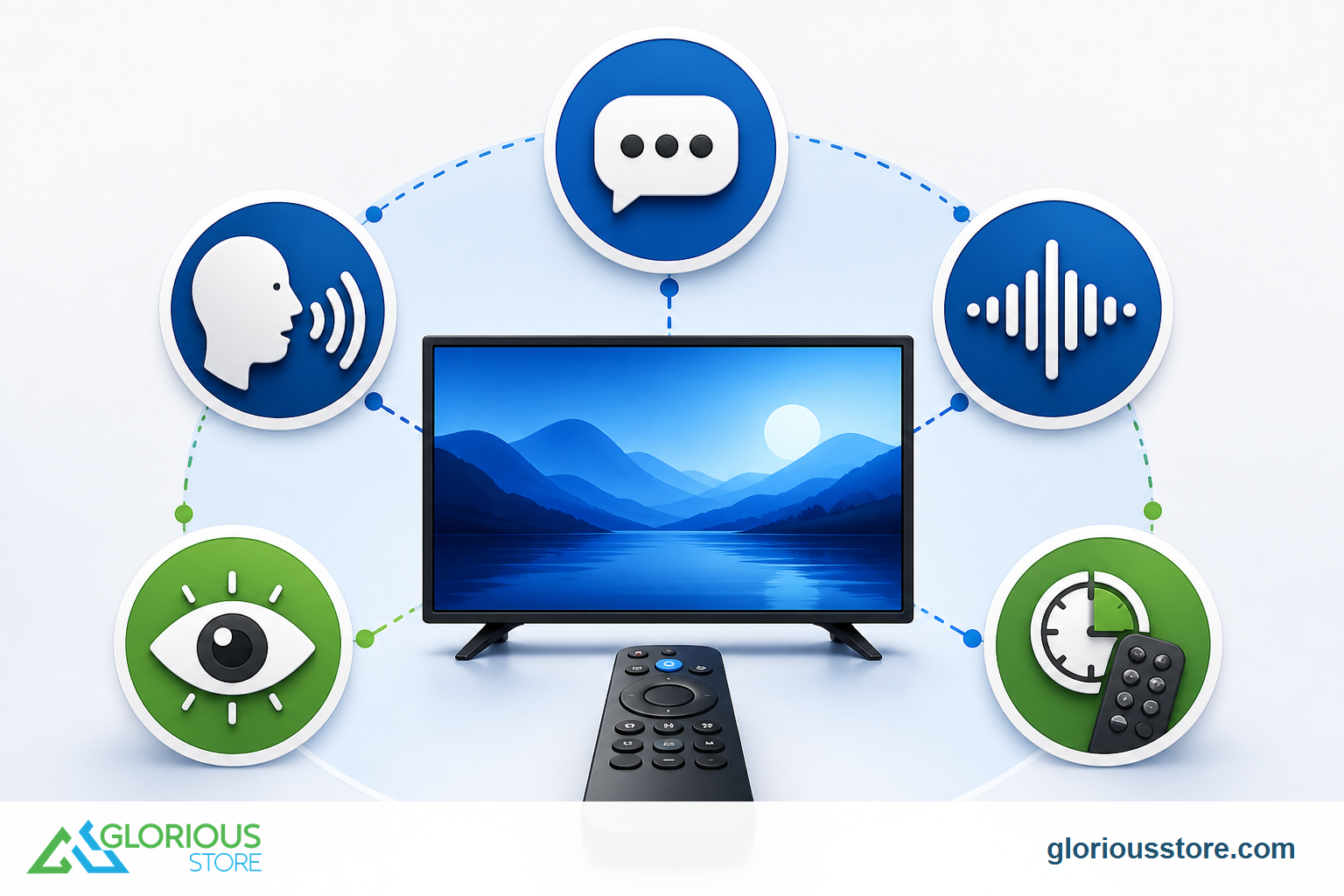
1. Turn On and Customize Captions
Google directs users to Settings → Accessibility → Captions, where captions can be displayed and customized. Depending on the software build, choices may include text size, color, background, or style.
System caption preferences do not always carry into every streaming app. Google explicitly warns that some apps may ignore them. Test a real program inside each important app, and check the app’s own subtitle menu as well. For satellite or HDMI sources, caption availability is controlled by the program, receiver, broadcaster, and connection path—not only the TV.
For a shared household, save a style that is readable without covering too much of the picture. White or yellow text over a dark translucent background is often easier to follow than thin text directly over changing video. Language availability varies by title and provider, so check Arabic, English, French, or other needed languages on the actual service.
2. Use TalkBack for Spoken Navigation
TalkBack is Google TV’s screen reader. Google documents the path Settings → Accessibility → Services → TalkBack. Its configuration includes speech volume, verbosity, keyboard echo, usage hints, speech rate, and intonation.
Start with a moderate speech rate and fewer spoken hints, then increase detail only if it helps. A screen reader can describe menus and controls, but it does not automatically provide audio description for the film or program itself. Those are separate functions: TalkBack helps navigate the interface, while an audio-description track narrates important visual action in supported content.
3. Find Audio-Described Programs
Google says viewers can press the Assistant button on a compatible remote and ask to find movies with audio descriptions. Treat that as a discovery shortcut, not a promise that every result, language, app, or country will have an audio-description track. Open the title’s audio or language menu and verify the track before relying on it.
For broadcast television or a satellite receiver, look for an audio-language or accessibility option in the receiver and channel menus. Availability depends on the service. A television cannot create an official narration track when the content provider has not supplied one.
4. Improve Contrast and Reading Time
Google TV offers high-contrast text as an experimental setting on supported devices. It can make interface labels stand out more clearly, but it may not affect text inside every app. Combine it with a comfortable viewing distance, reduced reflections, and sensible room lighting rather than raising picture brightness to an uncomfortable level.
“Time to take action” changes how long temporary messages remain visible. That can help viewers who need more time to read or respond. On devices running Android 16 or newer, Google also documents bounce keys and key-repeat delay. These options can reduce accidental repeated presses or slow the point at which a held button begins repeating. Software-version requirements matter, so check the installed version and menus on the exact TV.
5. Set an Accessibility Shortcut
Google documents an optional shortcut that can be triggered by holding the remote’s back and down buttons together for three seconds. TalkBack is the default shortcut service, but another supported accessibility service may be selected.
Practice the shortcut before it is needed. Keep a simple printed note near the remote if a household member may activate TalkBack accidentally and not know how to turn it off. A useful shortcut is one the viewer can repeat confidently without opening several menus.
A Five-Minute Accessibility Test Before Buying
Do not judge accessibility from a specification badge alone. Ask to test the exact model or confirm the return and support process before purchase.
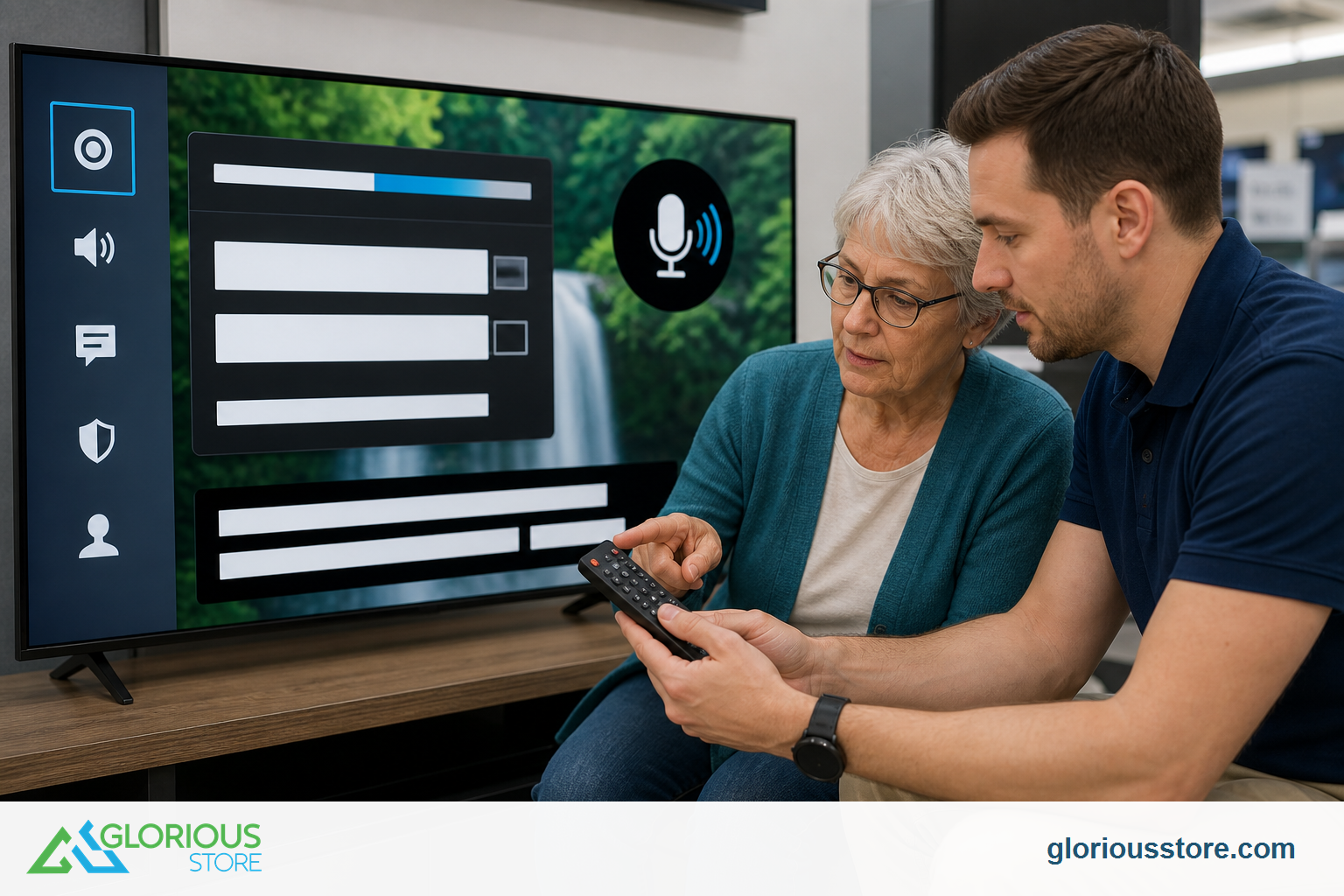
Use this practical sequence:
- Open the Accessibility menu without assistance and time how long it takes.
- Turn captions on, enlarge them, and test a real title in the main streaming app.
- Start TalkBack, adjust its volume and speed, then navigate back to the home screen.
- Search for an audio-described title and confirm the audio track inside the app.
- Increase temporary-message timing and test the remote for accidental repeated presses.
- Switch to the satellite receiver, console, or HDMI device used at home and repeat the caption/audio check.
- Confirm that the remote buttons, labels, microphone, and directional pad are comfortable for the intended viewer.
Current StarSat Google TV Options in the UAE
Glorious Store checked the following live listings on September 1, 2026. Stock and specifications can change, so use the linked product page as the final reference.
| Current model | Verified listing details | Stock checked Sept. 1 | Accessibility buying note |
|---|---|---|---|
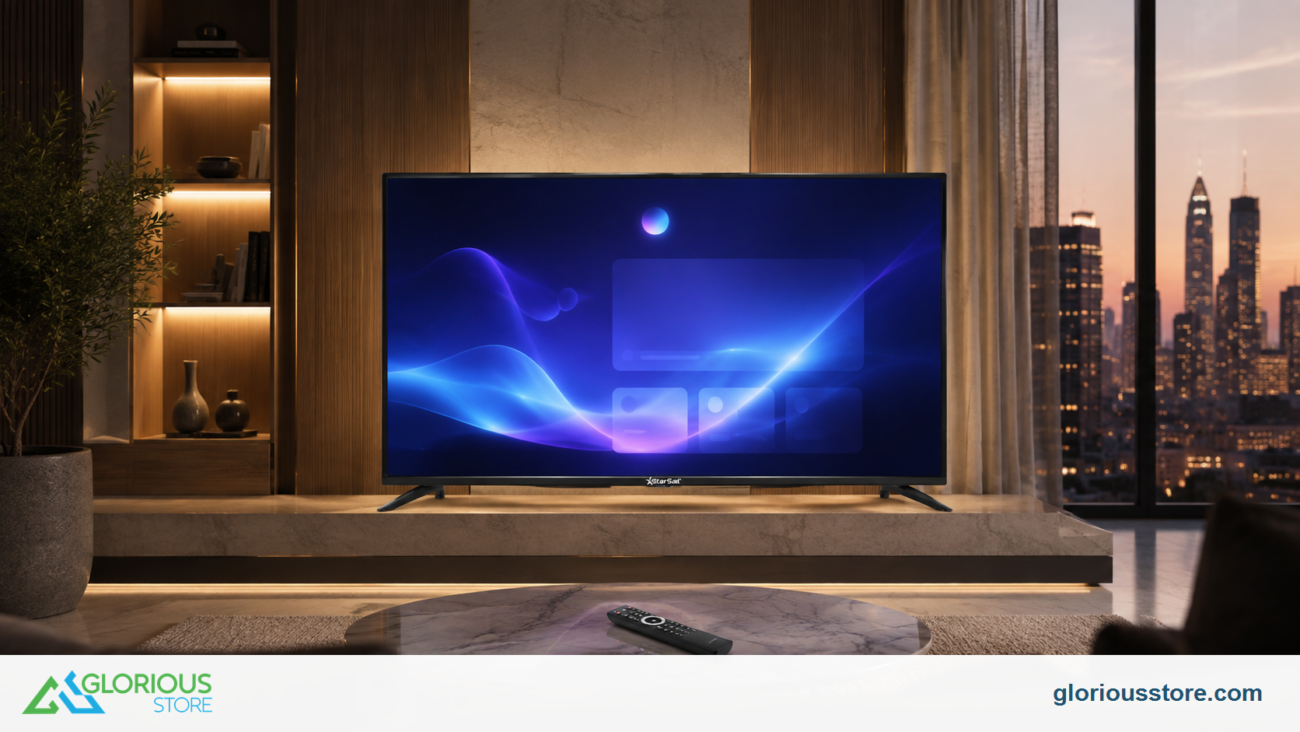
| StarSat Google50 50-inch 4K Google TV | Google TV OS, built-in Chromecast, Wi-Fi, Bluetooth, Google Assistant, multiple HDMI/USB connections; listing tags include Dolby Vision and Dolby Atmos | 10 | Compact choice; confirm the installed software version and preferred caption/TalkBack behavior |
| Starsat SV-CG55T2S2 55-inch UHD Smart TV | 4K Google TV, voice control, Chromecast, Dolby Vision/Atmos, HDR10+, HDMI 2.1, USB 3.0, Ethernet, ALLM/VRR | 50 | Good middle size; test voice control, app captions, remote feel, and audio-track menus |
| Starsat SV-CG65T2S2 65-inch UHD Smart TV | 4K Google TV, Chromecast, Dolby Vision/Atmos, HDR10+, four HDMI 2.1, three USB 3.0, Ethernet, ALLM/VRR; listing states 120Hz and 40W audio | 50 | Larger interface and subtitles may be easier to see from farther away, but room fit still matters |
Screen size can help readability, but it is not a substitute for usable controls. Review our separate TV size and viewing-distance guide before choosing between 50, 55, and 65 inches. If launch timing is part of the decision, the IFA 2026 smart TV buying guide covers buy-now-versus-wait intent without overlapping this accessibility setup.
Browse the live 4K UHD Smart TV collection for current availability. Product pages confirm platform and listed features; they do not guarantee that every Google accessibility option, app, language, or content track will be present on every software build.
What the 2026 DVB Update Means for Buyers
DVB’s June 30 update describes ways accessibility features can be signalled and used across television technologies, including DVB-I’s combination of broadcast and internet delivery. For consumers, the practical lesson is that accessibility depends on a chain: service metadata, content tracks, the receiving device, the operating system, the app, and the final user settings.
That is why a checklist beats a marketing label. Ask which captions and audio tracks a service supplies, whether the TV and external receiver expose them clearly, and whether the intended viewer can turn them on independently. The same approach is useful across the UAE, the wider Middle East, Europe, and Africa, where households often mix languages, broadcast services, satellite receivers, and streaming apps.
Frequently Asked Questions
Do Google TV caption settings work in every app?
No. Google notes that system caption preferences may not apply to certain apps. Check both the TV settings and the app’s own subtitle controls with real content.
Is TalkBack the same as audio description?
No. TalkBack reads interface elements and helps with navigation. Audio description is a separate narration track supplied with supported movies, shows, or broadcasts.
Can I use accessibility features through a satellite receiver?
Sometimes, but the receiver, channel, program, and connection must support them. Check the receiver’s language, subtitle, and audio menus; do not assume a TV setting can override a missing source track.
Does a larger TV automatically improve accessibility?
It can make text and captions appear larger at the same seating distance, but glare, contrast, menu design, remote usability, and viewing distance still matter. Measure the room and test settings, not just screen size.
Which smart TV accessibility settings should I test first?
Start with captions, TalkBack, audio-description discovery, high-contrast text, message timing, and the accessibility shortcut. Then repeat the test in the apps and HDMI devices the household actually uses.
Choose the TV the Whole Household Can Use
The best accessibility feature is one the viewer can find, understand, and control without frustration. Before ordering, list the two or three functions that are essential—perhaps larger captions, spoken menus, extra reading time, or audio-described content—and test that exact workflow.
If you need help comparing a current StarSat Google TV, contact Glorious Store with the preferred screen size, viewing distance, main apps or receiver, and the accessibility settings you want to verify. Recheck the live product page for stock, price, software, ports, and model-specific details before purchase.
Sources
- DVB Steering Board approves major DVB-I update package, June 30, 2026.
- DVB Accessibility Implementation Guidelines, A185r1, June 30, 2026.
- Google TV Help: Make Google TV more accessible, accessed September 1, 2026.
- Glorious Store live 50-inch, 55-inch, 65-inch, and TV collection pages, checked September 1, 2026.

Leave a comment