
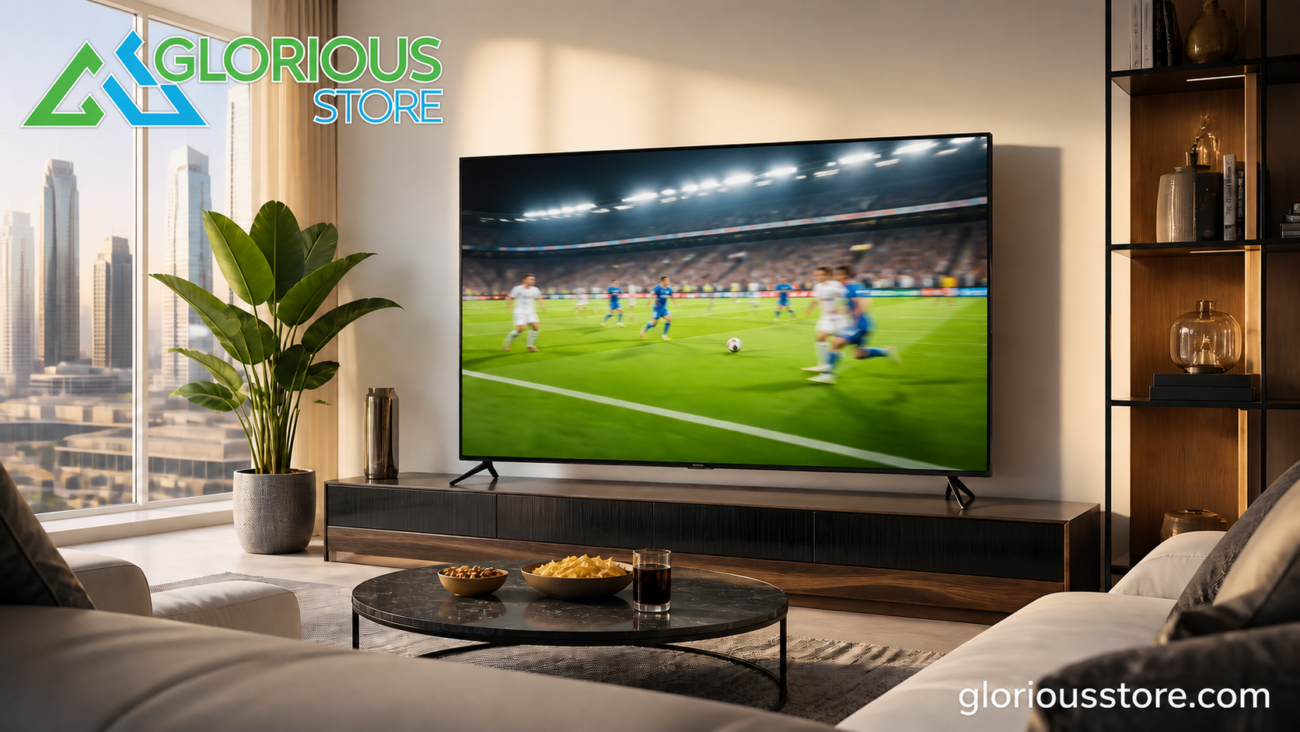
Football can expose weaknesses in a television picture faster than almost any movie. The camera pans rapidly across a bright green pitch, the ball changes direction in an instant, score graphics remain fixed on screen, and matches are often watched during daylight in UAE living rooms. A television that looks impressive in a showroom can therefore look blurry, overly bright, or unnatural during a live match.
The good news is that you may not need a new television. Correct picture settings, sensible room placement, and a reliable legal source can make a noticeable difference. If you are shopping for a new screen, the same principles will help you compare models without relying on vague marketing labels.
This guide explains the best TV settings for football and the smart TV features that matter most for UAE viewers.
Begin With a Good Source
Picture settings cannot recover detail that is missing from a heavily compressed or unstable source. Use an authorized satellite, cable, or streaming service and select the highest legitimate quality available for your package and device.
Not every football broadcast is native 4K. Upscaling can make HD video cleaner on a 4K panel, but it cannot create the same detail as a genuine UHD feed. Your final picture depends on the broadcaster, compression, internet or satellite signal, receiver, HDMI link, television processing, and screen settings.
For streaming, use Ethernet where possible or strong Wi-Fi near the television. If quality drops only during busy evening hours, test the connection and authorized app before changing every picture control.
Choose the Right Picture Mode
Start with Standard, Natural, Cinema, Movie, or Filmmaker mode, depending on the television. Avoid using an extremely vivid showroom mode for an entire match. It can exaggerate grass, crush detail in bright shirts, and cause eye fatigue.
Sports mode is worth testing, but it is not automatically the most accurate option. Some TVs combine useful motion processing with excessive color, sharpness, and brightness. Use it as a starting point and reduce the controls that make the image look artificial.
Adjust Motion Carefully

Motion handling is one of the most important features for football. Fast camera pans can reveal blur, judder, duplicate edges, or an unnatural “soap opera” effect.
Open the television’s motion menu. The control may be called Motion Smoothing, Motion Clarity, MEMC, TruMotion, Motion Plus, or something similar. Begin at a low setting and increase it one step at a time while watching a live pan across the pitch.
Look at the ball, field lines, players’ outlines, and scrolling score text. The goal is not maximum smoothing. Stop when movement becomes clearer but still looks natural. Very strong interpolation can create halos or visual errors around players and the ball.
A higher refresh-rate panel can help, but a large marketing number does not guarantee better sports performance. Processing quality, pixel response, source frame rate, and the specific motion controls also matter.
Set Brightness for the Room
UAE homes often have strong daytime light. Increase backlight or panel brightness enough to keep the image readable, but do not automatically set every brightness control to maximum.
If the TV has an ambient light sensor or adaptive picture option, test it through a full day. It can be convenient, but some systems dim the screen more than viewers prefer. For evening matches, reduce brightness to a comfortable level rather than keeping the daytime setting.
HDR can improve highlights and contrast when both the broadcast and TV support a compatible format. A label on the box alone does not guarantee strong HDR performance; panel brightness and processing still matter.
Control Reflections Before Raising Brightness

Before pushing brightness higher, reduce glare. Position the television so large windows are not directly opposite the screen. Use curtains or blinds during bright afternoon matches and avoid lamps reflecting in the panel.
Keep seats reasonably centered. Picture contrast and color can change at wide angles on some panel types, so a large group may benefit from a wider-viewing-angle television or a seating arrangement that keeps everyone closer to the center.
Keep Color Natural
Grass is a useful reference. If the pitch looks neon green, reduce color saturation or leave the exaggerated Vivid mode. Choose a neutral or warm color temperature rather than the coolest blue setting.
Do not copy exact numerical settings from an unrelated television. Controls differ by model, panel, firmware, and source. Make small changes and compare them with the default picture mode.
Reduce Artificial Sharpness
High sharpness does not create real detail. Excessive sharpness adds bright outlines around players, field markings, and text. Start near the neutral point recommended by the manufacturer and increase it only if the image genuinely looks too soft.
Noise reduction can help a poor low-bitrate source, but strong noise processing may erase grass texture and fine detail. Use low settings unless the source visibly needs more correction.
Check Aspect Ratio and Overscan
Set the television to display the full image using a mode such as Screen Fit, Just Scan, Full Pixel, or Original. Overscan can crop score graphics and reduce clarity by resizing the picture unnecessarily.
For an external receiver, confirm that its output resolution matches a supported TV input. Use a reliable HDMI cable and the correct input mode. If the TV offers an enhanced HDMI setting, enable it only where required by the source device and format.
Improve Commentary and Crowd Sound
Clear commentary matters as much as picture quality. Try Standard, Sports, or Clear Voice sound modes. If the crowd overwhelms the announcers, lower bass slightly or increase the midrange where speech sits.
A soundbar can improve clarity and scale, but position it so it does not block the television’s remote sensor. Avoid extreme surround processing if it makes commentary sound distant.
Current StarSat Smart TV Sizes at Glorious Store
The Glorious Store smart TV collection currently shows multiple purchasable options. Check the live product page before ordering because specifications and availability can change.
StarSat Google50 Smart 4K UHD LED TV
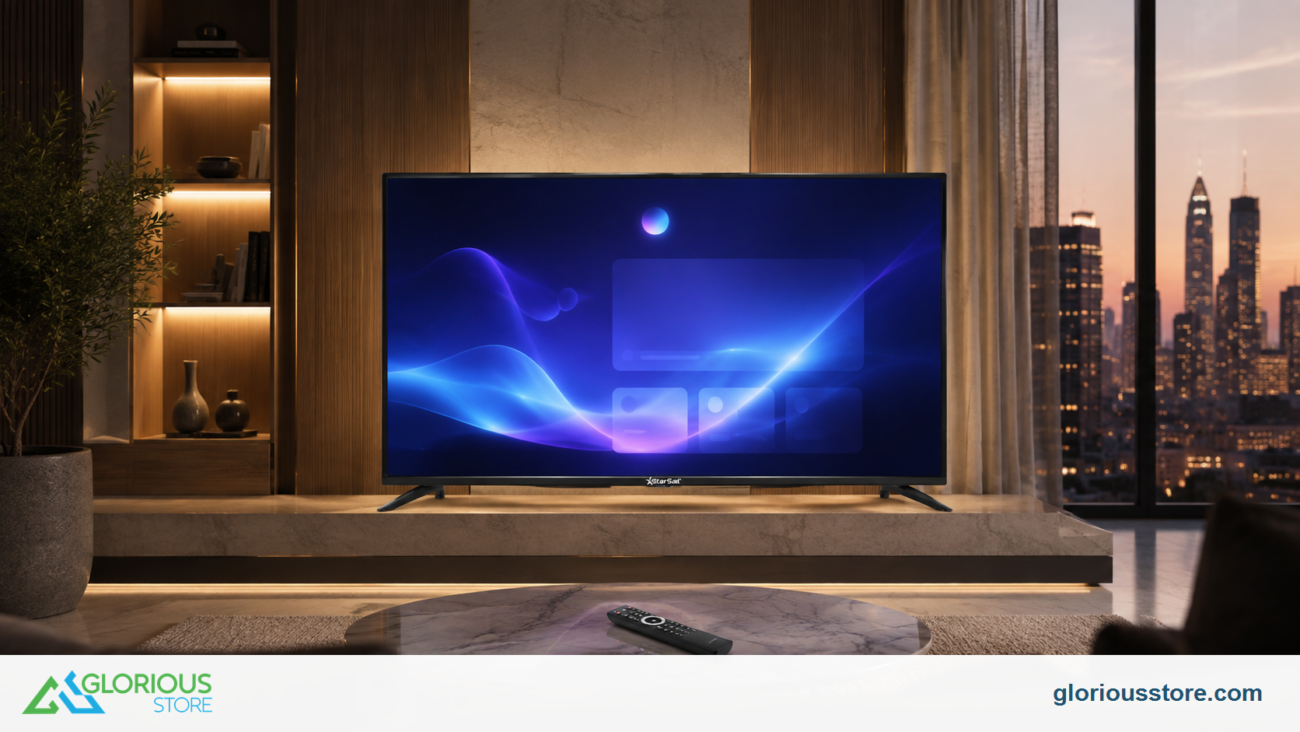
The StarSat Google50 50-inch Smart 4K TV is a practical size for many apartments and medium living rooms. Confirm its exact refresh behavior, HDR formats, app support, and HDMI features against your viewing needs.
StarSat 55-inch UHD Smart TV
A 55-inch screen can provide a more immersive match without dominating many typical rooms. The live collection currently lists a StarSat 55-inch UHD Smart TV. Check seating distance and wall or cabinet width before deciding.
StarSat 65-inch UHD Smart TV
The StarSat 65-inch UHD Smart TV can suit larger rooms and group viewing. A bigger screen also makes source flaws easier to see, so reliable HD or 4K delivery and sensible processing become more important.
StarSat Google75 Smart 4K UHD LED TV
The StarSat Google75 75-inch Smart 4K TV is intended for a large-screen experience. Measure the room, delivery route, stand, wall, and viewing distance before purchase. Confirm whether its motion and connectivity specifications meet your priorities.
A Five-Minute Match-Day Setup
1. Select a balanced picture mode. 2. Set room-appropriate panel brightness. 3. Reduce window and lamp reflections. 4. Apply low motion smoothing and watch for artifacts. 5. Reduce exaggerated color and sharpness. 6. Use the full-screen aspect-ratio setting without overscan. 7. Confirm the authorized stream or receiver is delivering its best available quality. 8. Test commentary clarity and volume before kickoff. 9. Save the settings for that input or app if your TV permits it.
Frequently Asked Questions
What is the best picture mode for football?
Start with Standard, Natural, Cinema, Movie, or a restrained Sports mode. Choose the most balanced option for your room, then adjust motion and brightness gradually.
Should motion smoothing be on for football?
A low setting can make camera pans and ball movement clearer. High settings may create halos or unnatural motion, so increase it only until the picture looks smooth and believable.
Why does football look blurry on my 4K TV?
Possible causes include a low-quality source, compression, weak internet, poor motion handling, excessive noise reduction, incorrect settings, or sitting too close to a large screen.
Does a 120Hz TV always make football better?
It can help, but panel refresh is only one factor. Source frame rate, response time, motion processing, and implementation also influence the result.
Which TV size is best for a UAE living room?
It depends on viewing distance, room layout, group size, and source quality. Measure before buying and ensure the screen does not force viewers into an uncomfortable position.
Make the Most of Your Match-Day Screen
The best football picture comes from a complete chain: a legitimate high-quality source, reliable connection, capable television, sensible placement, and balanced settings. Explore current StarSat smart TVs at Glorious Store, compare the live specifications, and choose a screen that fits both your room and viewing habits.

Leave a comment