
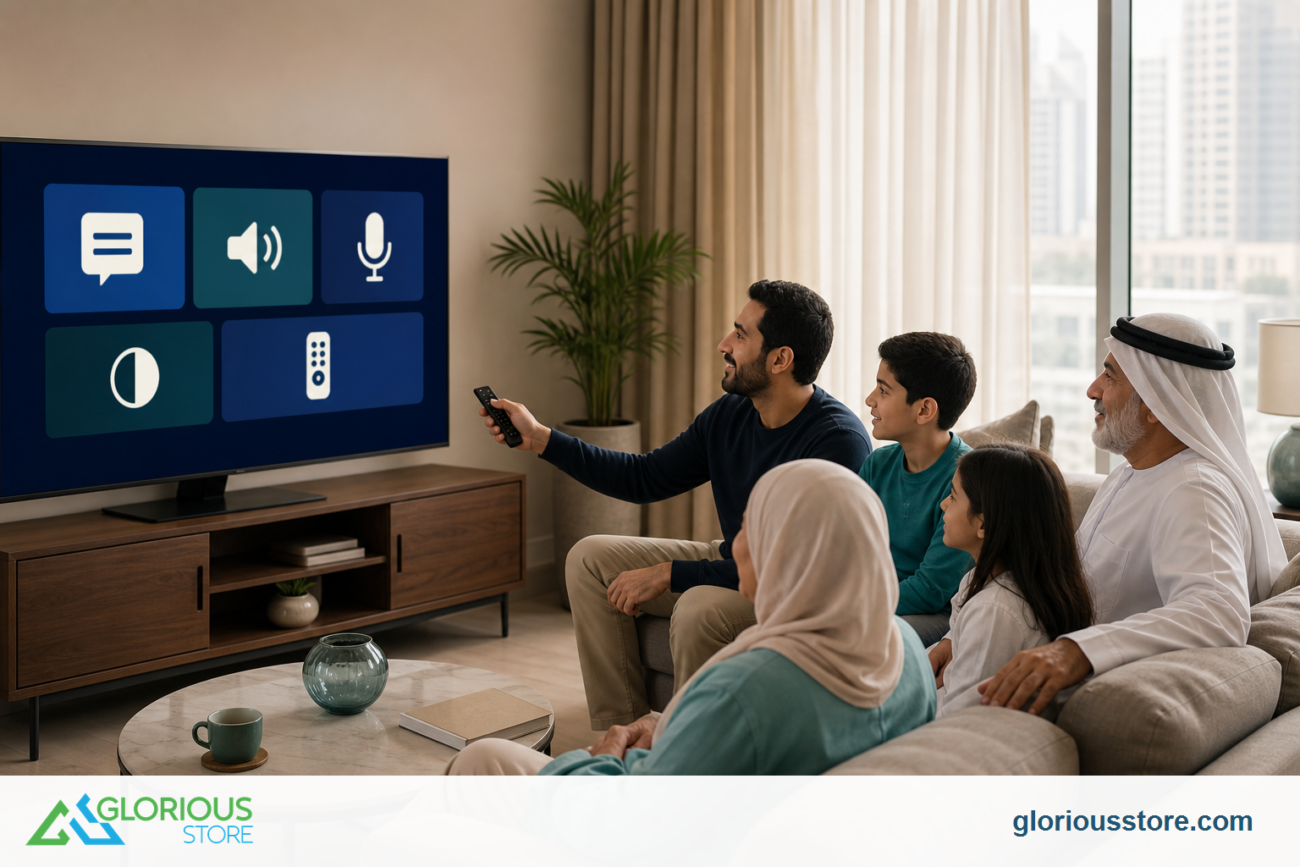
A modern 4K television can be the center of movies, sport, gaming and family streaming, but it does not need to run like a brightly lit showroom all evening. The most useful smart TV energy saving settings are simple: choose a balanced picture mode, match brightness to the room, set sensible inactivity timers and review what the rest of the entertainment system does when viewing stops.
This UAE-focused guide explains what to change, what to test and what not to assume. Menus differ by brand, model, software version and region. No percentage or bill saving is promised here, and a product page that lists 4K, HDR or Google TV does not automatically prove an efficiency rating. Use the exact television’s energy label, manual and on-screen controls as the final reference.
Why this matters before World Energy Day
Dubai Electricity and Water Authority says World Energy Day is observed every October 22 and promotes the conservation and efficient use of energy. That makes the weeks before the 2026 observance a good time for a household energy check that improves daily habits without turning entertainment into a chore.
DEWA also advises that changing a television’s display settings, contrast and brightness can reduce electricity use. Its current electrical-appliance guidance recommends unplugging electronic devices that are not in use because some still consume power while switched off.
The practical lesson is not to dim every screen until it is uncomfortable. It is to remove waste: excessive brightness in a dark room, a display left on after everyone leaves, and accessories that remain awake for no reason.
Start with a five-minute baseline
Before changing anything, record the current picture mode, then check four things in the room lighting you use most often:
- Is the picture mode labeled Vivid, Dynamic, Retail or Demo?
- Is the panel brighter than the room actually requires?
- Does the television stay on when an app is paused or an HDMI source disappears?
- Do the console, receiver, soundbar or streaming box wake and sleep with the TV?
Change one item at a time. If the picture looks worse, restore it instead of compensating with unrelated sliders.
1. Leave showroom modes for the showroom
Retail-oriented modes are designed to look striking under strong shop lighting. At home they can use aggressive brightness, color and sharpening that are unnecessary in a shaded living room.
Start with Standard, Cinema, Movie or another balanced preset. ENERGY STAR’s television guidance notes that automatic brightness control can adapt the screen to room light and that an energy-conscious preset may be available on certified models. Those observations are general guidance, not certification of any StarSat television listed below.
Watch familiar material with faces, dark scenes and subtitles. Keep shadow detail and text readable without making white areas uncomfortable.
2. Adjust panel brightness, not every control
"Brightness" can mean different things. On some TVs it changes the backlight or panel output; on others it changes the black level. Use the control that affects overall light output and leave advanced black-level or gamma controls alone unless you understand their effect.
Set daytime and evening brightness separately if the television supports it. In a UAE room with strong daylight, blinds or curtains often improve visibility more effectively than maximum panel output. Do not copy exact numbers from another model.
3. Test the ambient-light sensor
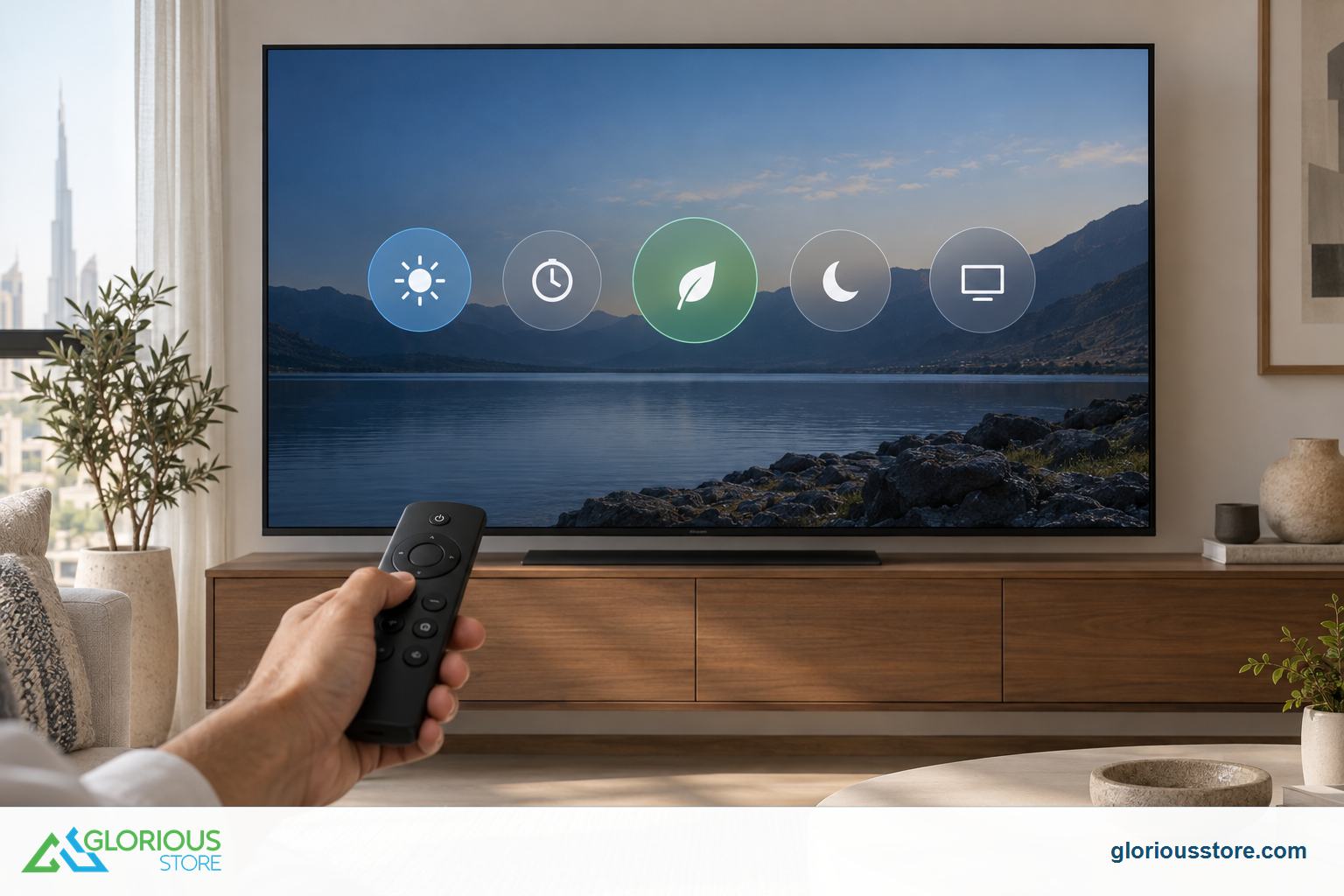
If an ambient-light sensor or adaptive brightness option exists, test it across a full day. Keep the sensor area clear. If the feature is too dim or produces distracting changes, use separate daylight and evening presets.
4. Set sleep and inactivity-timers
Look under Settings, System, Power & Energy, Device Preferences or a manufacturer-specific menu. Useful controls may include a sleep timer, automatic power-off after inactivity, screen-off while audio continues, and behavior when an HDMI source stops.
Google’s current Ambient Display guidance documents a Power & Energy shut-off timer on supported Google TV devices. It also explains that some newer presence-sensing displays can wake or sleep in response to movement, with model-specific limitations. The current StarSat pages do not state that the three models below include presence sensing, so this article does not claim they do.
Choose a timer that fits real viewing. A short timer can interrupt a long film or accessibility use; a very long timer may leave an empty screen running. Test paused streaming, a receiver input and a console separately because each can signal activity differently.
5. Understand standby, Quick Start and full power-off
Pressing the remote’s power button usually places a TV in standby. Quick Start can keep functions ready for faster wake, casting or network control, which may involve more activity than a deeper sleep state. Read the exact model’s explanation and test what stops working before disabling it.
Unplugging removes standby use but is not always the right daily action. Never cut power during an update or when scheduled functions are required. For long absences, follow the manufacturer and DEWA safety guidance.
6. Review the whole entertainment chain
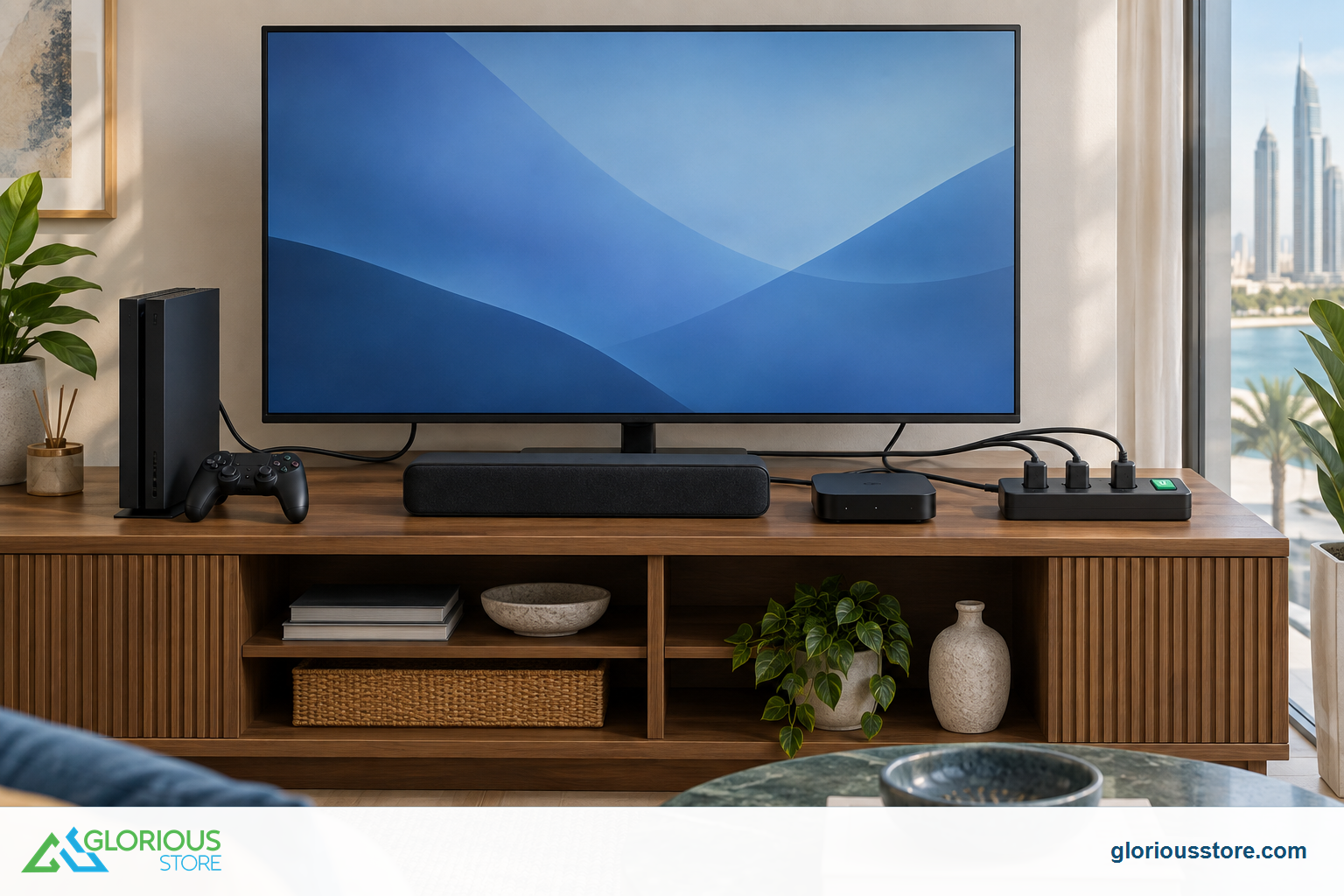
A TV setting cannot put every connected device to sleep. Check the satellite receiver, console, soundbar, HDMI switch and external streamer. HDMI-CEC may coordinate compatible equipment, but names and behavior vary. Test power-on, input switching and power-off in the actual setup.
For streaming, ENERGY STAR notes that using a smart TV’s built-in streaming capability can avoid the extra energy use of an additional player or game console. App support and performance still matter, so choose the route that works reliably and securely for the household.
7. Keep HDR and gaming features in perspective
HDR content can drive brighter highlights than standard video, so judge it with compatible material. Gaming features such as Variable Refresh Rate, Auto Low Latency Mode and a 120 Hz panel do not justify leaving a console awake after play ends. Save a gaming preset for the relevant HDMI input and a balanced preset for everyday television.
The HDMI 2.2 vs 2.1 guide explains why port capability, source output and cable support must be checked together. The football picture-settings guide covers motion and room-light choices without turning a match into an energy-rating claim.
Current StarSat Google TV choices in the UAE
Glorious Store checked the following live listings on September 29, 2026. Each showed an Add to Cart control. Stock is a dated snapshot and can change.
| Current listing | Verified listing details | Stock checked Sept. 29 | Energy-setting question to ask |
|---|---|---|---|
| StarSat Google50 50-inch 4K Google TV | Google TV OS, Chromecast, Wi-Fi, Bluetooth, Google Assistant and multiple HDMI/USB connections | 10 | Which Power & Energy, timer and adaptive-brightness controls appear on the current software build? |
| Starsat SV-CG55T2S2 55-inch UHD Smart TV | 4K Google TV, Chromecast, Dolby Vision/Atmos, HDR10+, HDMI 2.1, USB 3.0, Ethernet and listed ALLM/VRR | 50 | Does each input keep its own picture mode, and how does standby affect casting and HDMI-CEC? |
| Starsat SV-CG65T2S2 65-inch UHD Smart TV | 4K Google TV, Chromecast, Dolby Vision/Atmos, HDR10+, four HDMI 2.1, three USB 3.0, Ethernet, listed ALLM/VRR, 120 Hz and 40 W audio | 50 | What are the model’s label values, automatic brightness options and Quick Start tradeoffs? |
These pages confirm current stock and published entertainment features. They do not publish visible input-power, annual-consumption or UAE energy-label values, so no model is ranked as more efficient here. Ask for a photo of the exact energy label or the model-specific manual when that comparison matters.
For room fit, use the TV size and viewing-distance guide before choosing 50, 55 or 65 inches. A correctly sized screen is easier to keep for longer than one bought only for maximum diagonal size.
A one-week household check
Use the same setup for seven days before deciding whether it works:
- Keep a balanced picture mode for ordinary viewing.
- Use daylight control before raising panel output.
- Set an inactivity timer that does not interrupt normal use.
- Check whether accessories sleep when the TV turns off.
- Turn off an unused screen instead of leaving static art or menus running for hours.
- Review household meter data rather than estimating savings from one setting.
Frequently asked questions
Does lowering TV brightness always save energy?
Reducing panel light output generally reduces power demand on LED/LCD televisions, but the effect varies by model, picture mode and content. Use the energy label or a suitable meter for a measured comparison.
Should I unplug my smart TV every night?
Not necessarily. Standby supports features such as quick wake, updates, casting or HDMI control on some models. Review the manual and household needs. Unplugging may suit long absences, but avoid interrupting updates.
Is Eco mode always the best picture?
No. An Eco preset may be useful, but test shadow detail, captions and daytime visibility. A balanced custom setup can be more comfortable while still avoiding excessive output.
Do screensavers save energy?
A screensaver that keeps the panel lit still uses energy. A screen-off or automatic shut-off option is more direct when nobody is watching, subject to model behavior.
Make energy settings part of setup day
The best time to configure a television is when the stand, wall mount, receiver and apps are being installed. Save a comfortable daylight mode, an evening mode and a gaming mode only if needed. Then set realistic timers and test the connected devices.
Browse the live StarSat Smart TV collection for current availability. If energy consumption is a deciding factor, contact Glorious Store with the exact model and ask for its current UAE energy label, manual and available Power & Energy menus before ordering.
Sources
- DEWA: World Energy Day, accessed September 29, 2026.
- DEWA: Electrical Appliances, accessed September 29, 2026.
- DEWA: Adjusting TV display settings, contrast and brightness can reduce electricity, August 2, 2021; accessed September 29, 2026.
- Google TV Help: Use Ambient Display on your TV, accessed September 29, 2026.
- ENERGY STAR: Televisions, accessed September 29, 2026. ENERGY STAR statements are general US program guidance, not certification claims for the listed StarSat models.
- Glorious Store live 50-inch, 55-inch, 65-inch and Smart TV collection pages, checked September 29, 2026.

Leave a comment