

Football calendars fill up quickly once the European season begins. A late kickoff, a family commitment, or two matches at the same time can turn “I’ll watch it live” into a missed game. A USB PVR satellite receiver gives you a practical way to record a channel you are authorized to watch onto compatible USB storage, then play it back through the receiver.
This guide focuses on the details that make recording reliable: choosing a current PVR-capable receiver, preparing storage, running a short test, and avoiding common mistakes. If you only need a broad explanation of whether recording is possible, see our earlier guide, Can a Satellite Receiver Record TV Shows?. Here, the intent is narrower and more practical: USB setup, storage planning, football-night preparation, and three currently available StarSat options.
Important: Record only channels and programs you are legally entitled to receive. Broadcaster rules, subscriptions, conditional-access systems, and content protection can affect whether a program can be recorded or replayed.
Why USB PVR matters for the 2026/27 football season
This is a timely moment to prepare. UEFA confirmed that the 2026/27 Champions League league-phase draw takes place on August 27, 2026, and that the detailed fixture list will be communicated by August 29. Matchday 1 follows on September 8–10. The Premier League season also began on August 21, with fixtures already spread across Fridays, weekends, and Mondays. Sources: UEFA draw guide, August 25, 2026, UEFA 2026/27 dates, and Premier League fixtures, June 19, 2026.
That does not mean every match is available on every satellite service. Channel availability and rights differ by country and provider. It does mean viewers across the UAE and wider Middle East have a good reason to test their recording setup before the schedule becomes busy.

What a USB PVR satellite receiver actually does
PVR means personal video recorder. On a compatible satellite receiver, the PVR function writes the incoming television program to USB storage. Playback then happens through the receiver’s recording or media menu.
The exact controls vary by model and software version. One receiver may have a dedicated REC button; another may place recording inside an on-screen menu. Some interfaces let you create a timer from the electronic program guide (EPG), while others emphasize manual recording. Do not assume that two receivers with “USB PVR” on their product pages have identical timer, file, or standby behavior.
USB PVR is also different from streaming catch-up. It normally records the live channel received by the satellite box. It does not automatically provide cloud storage, and it does not add rights to a channel you cannot already watch.
Three in-stock StarSat receivers with USB PVR
The following models were individually checked on August 25, 2026. Stock is a dated snapshot and can change, so open the product page before ordering.
| Receiver | Verified strengths | Stock checked Aug. 25 | Best fit |
|---|---|---|---|
| StarSat SR-450HD PRO | USB PVR, DVB-S2, Blind Scan, 7-day EPG, 4G/Wi-Fi readiness, 6000 channels | 27 | Viewers who want PVR plus broader connected features; network dongle is not included |
| StarSat SR-2075HD | USB PVR, two USB ports, DVB-S2, Blind Scan, multi-EPG, 5000+ channels, Wi-Fi/3G readiness | 28 | A practical choice when two USB ports and a compact Full HD receiver matter |
| StarSat SR-440HD Black | USB 2.0 PVR, DVB-S2, Blind Scan, 7-day EPG, 6000 channels, Wi-Fi compatibility | 21 | A compact, straightforward Full HD PVR setup |
All three product pages state that network adapters are separate where network features are mentioned. USB PVR itself is the feature relevant to recording; Wi-Fi is not a substitute for a connected storage device. Browse the current satellite receiver collection if stock changes or you need a different feature set.
A note on Full HD versus 4K
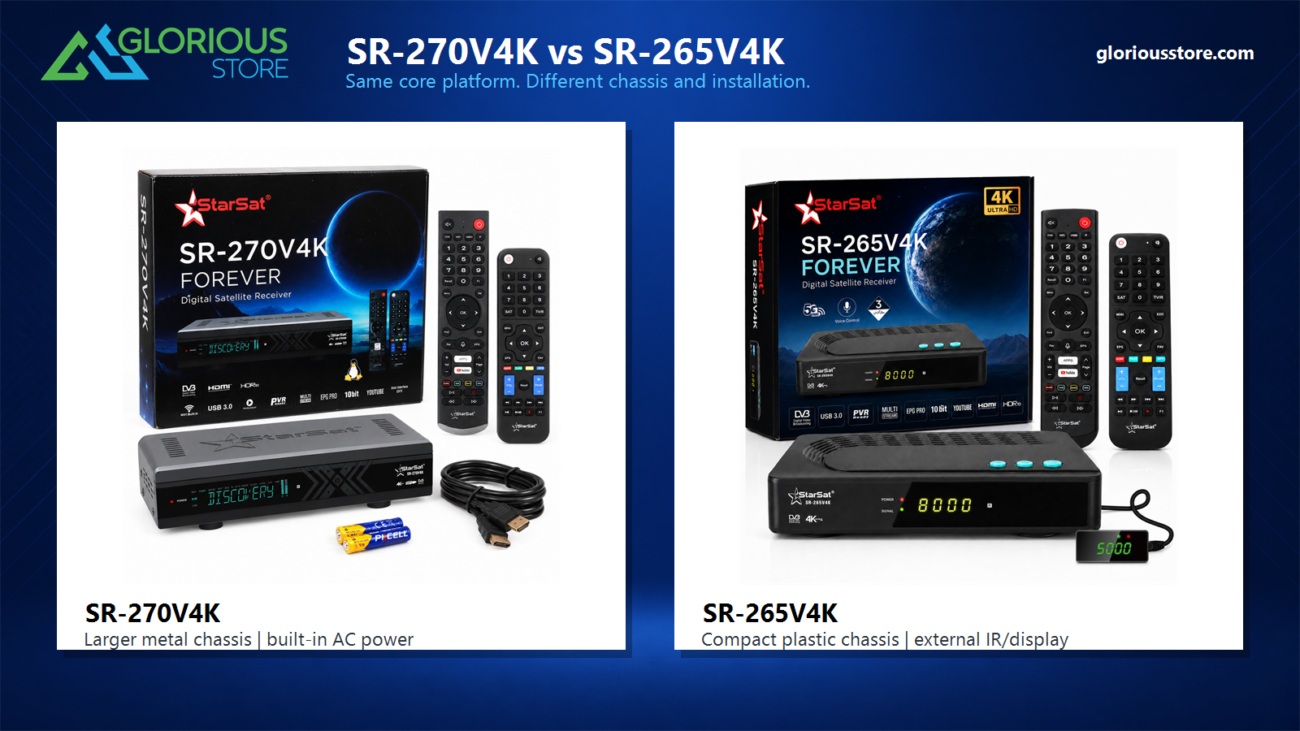
These three current models are Full HD receivers. Choose them for the listed PVR, scanning, EPG, and connectivity features—not as 4K receivers. If 4K output is essential, compare that requirement separately and confirm both current stock and explicit PVR support on the exact 4K model page. Our multi-stream satellite receiver guide covers a different technical question and should not be treated as a USB-recording guide.
How to set up USB PVR without risking the big match
1. Confirm the channel and receiver behavior
First, tune to the exact channel you plan to record. Confirm that it plays normally under your legitimate service or access arrangement. Open the receiver’s recording menu and identify the controls for instant recording, recordings, and—if supported—timers. Menu names can change after software updates, so the on-screen interface and model documentation should take priority over generic instructions.
2. Use dedicated, compatible USB storage
Use a reliable USB device that the receiver recognizes consistently. A dedicated drive is easier to manage than one mixed with work files, family photos, and other important data. If the receiver offers to format the device, remember that formatting can erase existing files. Back up anything important before accepting that option.
Do not rely on a universal capacity promise. Recording size varies with channel bitrate, resolution, duration, and the receiver’s recording format. The safest planning method is to record a short sample from the actual channel, check the resulting file size in the receiver, and scale that result to the expected match length with extra margin.
3. Run a short recording and playback test
Record at least a few minutes, stop cleanly, then play the file from the beginning and near the end. Check for picture breakup, missing audio, or a recording that stops early. A successful red recording icon is not enough; the saved file must play.
If the USB device disconnects, becomes hot, or repeatedly produces corrupted files, do not trust it for an important event. Test another compatible device and recheck the receiver’s USB port.
4. Check timers, EPG data, and standby behavior
If your interface supports scheduled recording, set a test timer for a program later the same day. Verify the channel, date, start time, end time, and local time zone. Add a few minutes of margin when appropriate because live sports can run beyond the nominal slot.
Then confirm how the receiver behaves in standby. Some devices can wake for a timer; others may need to remain on. The three product pages list EPG and PVR capabilities, but they do not promise identical timer or wake-from-standby behavior. Test your exact unit instead of discovering the difference after kickoff.

5. Leave the system ready
Keep ventilation openings clear, route cables so they cannot be pulled loose, and make sure the USB device is firmly seated. Avoid changing satellite settings, channel lists, or receiver software immediately before a planned recording unless the change is necessary and you have time to retest everything.
Quick troubleshooting guide
| Problem | What to check first |
|---|---|
| Receiver does not see the USB device | Reseat it, try the other USB port if available, restart safely, and check the receiver’s supported format guidance |
| Recording starts but stops early | Free space, USB stability, overheating, power interruptions, and whether the channel changed |
| File exists but will not play | Test playback through the receiver, make a new short recording, and avoid assuming a computer will support the receiver’s file format |
| Timer records the wrong program | Local time, EPG accuracy, channel selection, schedule changes, and start/end margins |
| Screen says recording is unavailable | Channel authorization, content protection, receiver limitations, and whether another tuner-dependent task is active |
| Cannot watch another satellite channel while recording | Many single-tuner setups are limited by the active tuner/transponder; do not promise simultaneous viewing until you test the exact combination |
The last point matters. Two USB ports do not mean two satellite tuners. USB count describes connectivity; tuner behavior determines which channels can be watched or recorded at the same time.
Which model should you choose?
Choose the SR-450HD PRO if you want the listed 7-day EPG, PVR, Blind Scan, and network-ready features in one Full HD box. Choose the SR-2075HD if two USB ports are useful for your setup and its 5000+ channel capacity meets your needs. Choose the SR-440HD Black if you prefer a compact receiver with the core Full HD, EPG, Blind Scan, Wi-Fi-compatible, and USB PVR feature set.
The best choice is the one whose confirmed features match your real signal, television, authorized channels, and recording habits. Do not buy solely because a model appears in a football guide.
Frequently asked questions
Does USB PVR require internet?
Recording a satellite channel to USB generally depends on the satellite signal, receiver, channel access, and storage—not on internet streaming. Optional apps or network features may require a separate adapter and internet connection.
Can I use any USB drive?
Do not assume every drive, capacity, or file system will work. Use storage recognized by the receiver, protect existing files before any format prompt, and validate it with a recording-and-playback test.
Can I record one channel and watch another?
That depends on the receiver’s tuner design, satellite/transponder combination, software, and channel access. The listed USB ports do not establish multi-tuner capability. Test the exact channels you intend to use.
Will a scheduled football recording capture extra time?
Only if the recording remains active long enough. Where timer controls allow it, add end-time margin and verify available storage. EPG schedules can also change.
Is the USB recording playable on a computer?
Sometimes, but not always. Receivers can use different containers, file systems, or protection rules. Treat playback on the receiver as the primary supported workflow unless the model documentation says otherwise.
Prepare before the draw becomes a fixture list
UEFA’s August 27 draw and the fixture release that follows make this the right week to test—not merely buy—a recording setup. Compare the current StarSat satellite receivers, verify live stock on the exact product page, and run a short real-channel recording before relying on USB PVR for football night.
Need help matching a receiver to your television, dish setup, and authorized channels? Contact Glorious Store with your requirements. We can help you compare listed features; channel rights, schedules, and compatibility still need to be confirmed for your service and location.




Leave a comment